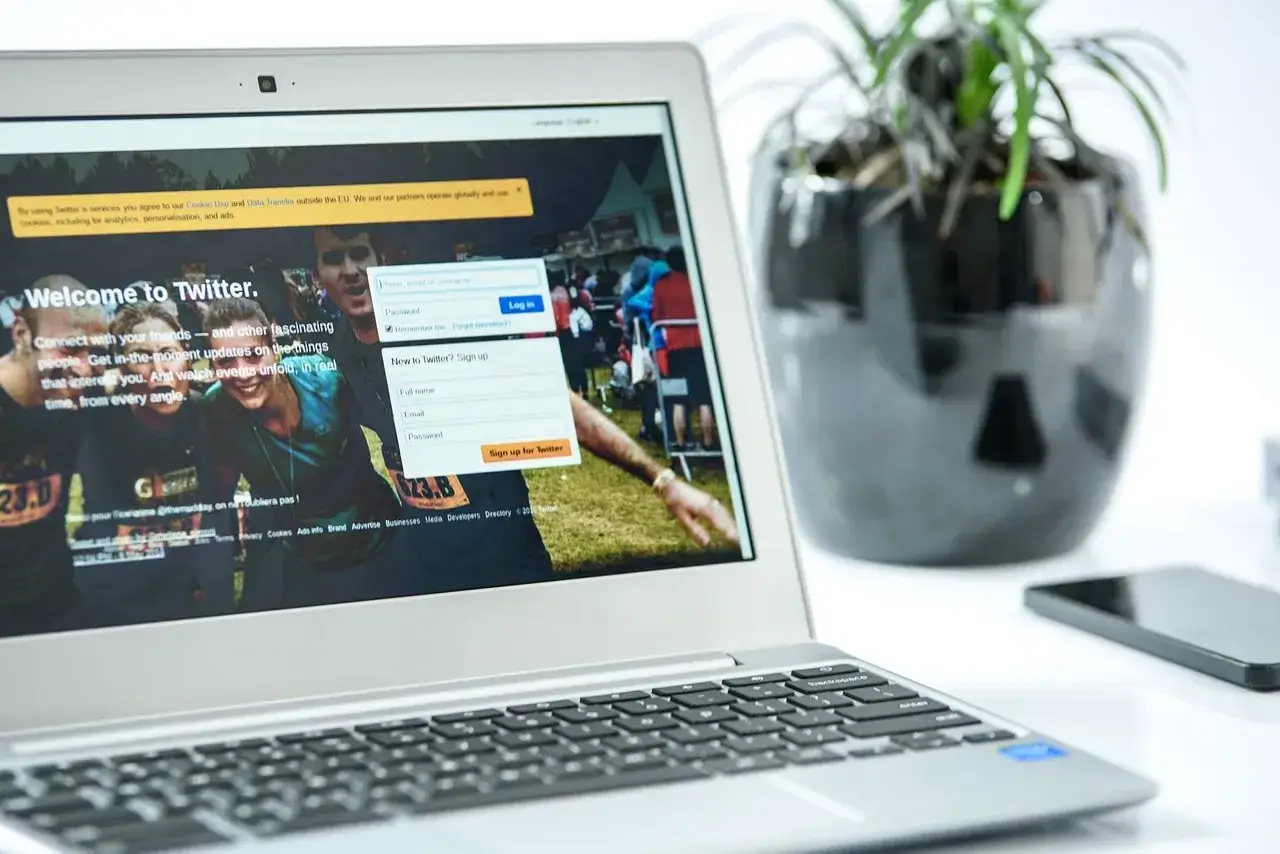
The synergy between your Android phone and Chromebook can enhance your productivity and streamline your digital life. These devices, both developed by Google, are designed to seamlessly work together. Whether you want to transfer files, mirror your screen, or send text messages, connecting your Android phone to a Chromebook opens up a world of possibilities. In this comprehensive guide, we’ll walk you through the steps to establish a strong connection between your Android phone and Chromebook, enabling you to make the most of this dynamic duo.
Table of Contents
Step 1: Check Compatibility
Ensure that both your Android phone and Chromebook are running the latest software updates. Compatibility issues can hinder smooth interactions between the devices.
Step 2: Sign into Both Devices
Sign in to your Android phone and Chromebook using the same Google account. This common login is the foundation for seamless integration.
Step 3: Unlock Your Phone and Enable Bluetooth
Unlock your Android phone and turn on Bluetooth. This action is crucial for establishing a connection between the two devices.
Step 4: Pairing Your Devices
On your Chromebook, click on the clock in the bottom-right corner, then click on the Bluetooth icon. Select “Connected devices” and then “Set up.” You’ll find your Android device listed. Click on it to initiate the pairing process. Follow the on-screen prompts to complete the setup.
Step 5: File Sharing and Texting
With your devices connected, you can now easily share files. Open the “Files” app on your Chromebook, select “My files,” and click on your Android device’s name under “Devices.” You can also use the “Messages” app on your Chromebook to send and receive SMS messages from your Android phone.
Step 6: Screen Mirroring
Want to mirror your Android phone’s screen on your Chromebook? Open the Quick Settings on your Android phone, select “Screen Cast,” and choose your Chromebook from the list. Your Chromebook’s screen will now display your Android phone’s screen.
Step 7: Chromebook’s Instant Tethering
If you have an active data connection on your Android phone and your Chromebook is offline, the Chromebook can automatically tether to your phone’s mobile data. This feature keeps you connected, even when Wi-Fi isn’t available.
Summary
Connecting your Android phone to a Chromebook opens a world of convenience and collaboration. From effortless file sharing and text messaging to the magic of screen mirroring, these devices harmoniously complement each other. By following the step-by-step guide outlined above, you’ll establish a robust connection that enhances your efficiency and productivity. Seamlessly bridge the gap between your Android phone and Chromebook to experience the power of unified technology.